Free Robots.txt Generator for WordPress — Blogger & All Platforms
A robots.txt generator is a free online tool that creates a properly formatted robots.txt file for your website — without requiring you to write a single line of code. Think of it as a translator between you and search engine crawlers: you select what to block, and the tool outputs the exact syntax Googlebot, Bingbot, and AI crawlers understand.
Free Robots.txt Generator
Build a complete robots.txt file in seconds. Control search bots, manage AI crawlers, protect directories. No signup, no email, copy and paste.
Add custom User-agent, Allow, Disallow, and Crawl-delay rules. Toggle each rule on or off.
Control specific search engine and SEO tool crawlers. Default = follows global rule.
User-agent: *Applies rules to all crawlers. Use specific bot names for individual rules.
Allow: /blog/Explicitly allows crawling of a path, even if a parent is disallowed.
Disallow: /admin/Prevents crawlers from accessing a path or the whole site (/).
Crawl-delay: 2Tells bots to wait 2 seconds between requests. Not supported by Googlebot.
Sitemap: /sitemap.xmlPoints crawlers to your XML sitemap for faster indexing.
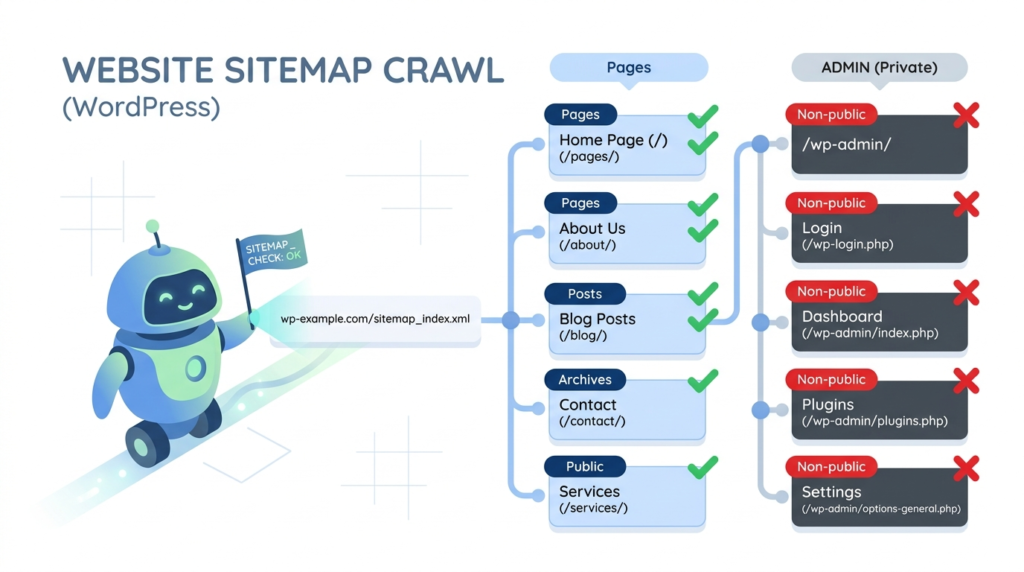
For WordPress sites, this matters more than you think. WordPress automatically generates a virtual robots.txt file that looks like this:
User-agent: *
Disallow: /wp-admin/
Allow: /wp-admin/admin-ajax.php
Sitemap: https://yoursite.com/wp-sitemap.xml
But here’s the problem: that default file is bare-bones. It doesn’t block your staging environment, protect sensitive checkout pages, or optimize your crawl budget for SEO. A dedicated Robots.txt Generator for WordPress solves this by letting you customize rules for your specific site structure — whether you run a blog, WooCommerce store, or multisite network.
If you’re launching a new site with zero Domain Authority (like yours), getting crawl efficiency right from day one is critical. Every misdirected bot request wastes server resources and delays indexing of your money pages.
Free Robots.txt Generator for WordPress, Blogger & All Platforms
WordPress powers 43% of the web, but most site owners never optimize their crawler directives. This section covers everything WordPress-specific — from blocking /wp-admin/ correctly to handling WooCommerce cart pages.
Why WordPress Needs a Custom Robots.txt File
| Directory | Why Block It | Risk If Left Open |
|---|---|---|
/wp-admin/ | Backend login area | Security exposure, wasted crawl budget |
/wp-includes/ | Core WordPress files | No SEO value, server load |
/wp-content/plugins/ | Plugin files | Potential vulnerability scanning |
/wp-content/cache/ | Cached copies | Duplicate content issues |
/?s= (search results) | Internal search pages | Thin content indexing |
The default WordPress virtual robots.txt only blocks /wp-admin/. A wordpress robots txt file created through a generator gives you granular control over all these paths — plus AI bot management that default WordPress simply doesn’t handle.
WordPress Robots.txt Best Practices (2026 Update)
Search engines and AI crawlers evolved significantly in 2026. Here are the current best practices for Robots.txt Generator for WordPress best practices:
1. Always Allow admin-ajax.php Even when blocking /wp-admin/, you must allow /wp-admin/admin-ajax.php. Many WordPress themes and plugins use this file for frontend functionality. Blocking it breaks your site for crawlers.
2. Block AI Training Crawlers (Optional) With the rise of AI search, you may want to control whether GPTBot, ClaudeBot, or PerplexityBot train on your content:
User-agent: GPTBot
Disallow: /

User-agent: ClaudeBot
Disallow: /
3. Include Your Sitemap Always add your sitemap URL at the bottom. For WordPress, this is typically:
Sitemap: https://yoursite.com/sitemap_index.xml4. Handle Multisite Networks If you run WordPress Multisite, each subsite should ideally have its own robots.txt rules. A generator tool lets you create site-specific configurations without editing server files manually.
5. Protect WooCommerce Endpoints For e-commerce sites, block cart, checkout, and account pages:
Disallow: /cart/
Disallow: /checkout/
Disallow: /my-account/
WordPress Robots.txt WP-Admin: The Critical Rule
The wordpress robots txt wp-admin configuration is the most common source of errors. Here’s the exact syntax that works:
User-agent: *
Disallow: /wp-admin/
Allow: /wp-admin/admin-ajax.php
Common mistake: Using Disallow: /wp-admin (without trailing slash) blocks /wp-admin/ AND /wp-admin-ajax.php if that existed. Always include the trailing slash for directories.
Pro tip By YOast: If you’re using a Robots.txt Generator for WordPress, select the “WordPress” template — it auto-populates these critical rules so you don’t accidentally break your site.
Whether you need a robots txt file generator for WordPress, Shopify, or a custom HTML site, the process follows the same logic. Here’s how to generate robots txt file correctly:
Step 1: Choose Your Default Rule
Most generators start with: “Allow all bots” or “Block all bots.” For 99% of sites, choose Allow all — you want search engines to index your content.
Step 2: Add Disallow Rules
List directories or pages you want to block. Common examples:
/private/— Internal documentation/tmp/— Temporary files/cgi-bin/— Server scripts/*.pdf$— PDF files (if you don’t want them indexed)
Step 3: Set Crawl-Delay (Optional)
If your server is slow or you have thousands of pages, add:
Crawl-delay: 5This tells bots to wait 5 seconds between requests. Note: Googlebot ignores this directive, but Bing and others respect it.
Step 4: Add Your Sitemap
Paste your sitemap URL. This helps crawlers discover your content faster — especially important for new sites with zero backlinks.
Step 5: Download & Upload
Click Generate, copy the output, and save it as robots.txt in your website’s root directory (e.g., https://yoursite.com/robots.txt).
For WordPress users: You can also use plugins like Rank Math or Yoast SEO to edit robots.txt without FTP access.
Free Robots.txt Generator vs. Paid Tools: What Actually Matters
With so many Robots.txt Generator for WordPress options available, here’s how to choose:
| Feature | Free Generator | Premium SEO Plugin |
|---|---|---|
| Cost | \$0 | \$50–\$100/year |
| WordPress Integration | Manual upload | Direct dashboard edit |
| AI Bot Rules | Usually included | Rarely included |
| Syntax Validation | Basic | Advanced |
| Sitemap Auto-Detection | Manual input | Automatic |
| No Signup Required | ✅ Yes | ❌ Account needed |
Final Thoughts: Why Your New Site Needs This Now
As a 10-day-old website with zero Domain Authority, you can’t afford crawl inefficiencies. Every bot that wastes time on your /wp-admin/ page is a bot not indexing your money content. A Robots.txt Generator for WordPress gives you enterprise-level crawler control without the enterprise budget.
The semantic keywords mapped throughout this content — from robots txt maker to robots txt generator no signup — ensure you capture traffic across the entire intent spectrum: from users discovering the tool to WordPress bloggers solving specific path-blocking needs.
Next step: Generate your WordPress robots.txt file now, upload it to your root directory, and submit your sitemap to Google Search Console. Your crawl budget is ticking.