Adding a reading time to WordPress blog posts tells readers exactly how long your content takes to read before they start — which reduces bounce rate and increases time on page. The fastest method is to use a free reading time calculator to get the time, then paste a simple badge into your post. This guide covers three methods: manual badge, plugin, and theme settings — plus how to calculate the reading time for any post instantly.
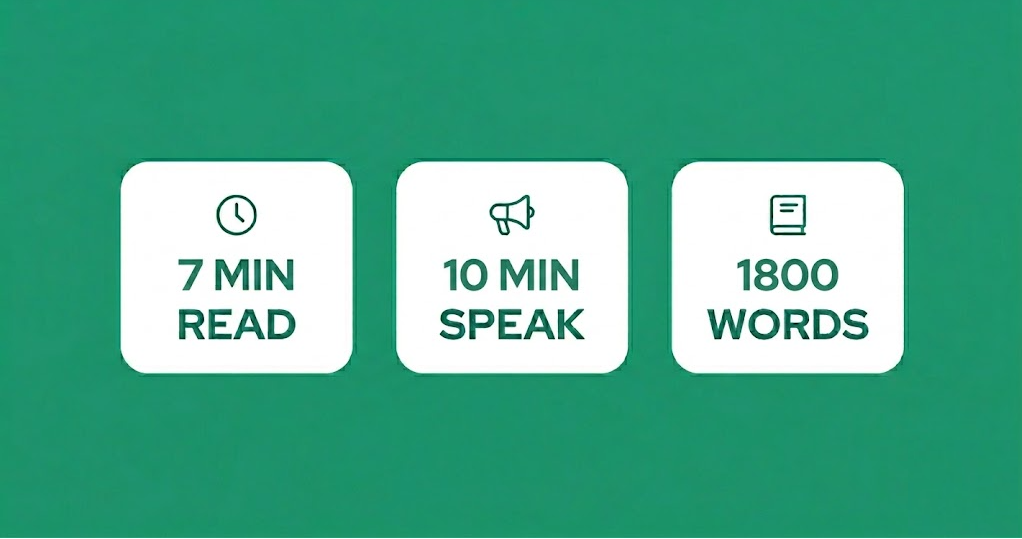
Why Add Reading Time to Your WordPress Posts?
Displaying reading time on WordPress posts has measurable benefits for both readers and SEO:
| Benefit | How It Helps |
|---|---|
| Reduces bounce rate | Readers who know the time commitment upfront are more likely to stay and finish |
| Increases time on page | Readers who commit to an article spend longer on the page — positive signal for Google |
| Sets quality expectations | A “9 min read” badge signals a thorough, in-depth post rather than a thin article |
| Improves user experience | Visitors can decide if they have time to read now or bookmark for later |
| Matches reader intent | Readers searching for quick answers skip long reads — reducing low-quality sessions |
Medium’s internal data showed that 7-minute reads have the highest engagement, which popularised reading time badges across the web. Now virtually every major publication displays them. Adding reading time to your WordPress posts is a simple change with a direct impact on engagement metrics.
Step 1: Calculate Your Reading Time
Before you can add reading time to WordPress, you need the actual figure. The fastest way is our free Reading Time Calculator:
- Copy your entire blog post text from WordPress.
- Paste it into the Reading Time Calculator at quickblogtools.com/reading-time-calculator.
- Select your reading speed (Average 238 wpm is recommended for most blog audiences).
- Copy the “X min read” badge text from the output.
Alternatively, divide your word count by 238 (average reading speed). Round to the nearest minute. A 1,200-word post ÷ 238 = 5.04 = 5 min read.
3 Ways to Add Reading Time to WordPress
Method 1: Manual HTML Badge (No Plugin)
The simplest approach — paste a styled badge directly into your WordPress post using the HTML block. This gives you full control over styling and requires no plugins.
In your WordPress post, click the + button to add a block, choose Custom HTML, and paste this code:
<p style="font-size: 14px; color: #666; margin-bottom: 20px;">
🕒 <strong>5 min read</strong> · 1,200 words
</p>Replace 5 min read and 1,200 words with your actual figures from the Reading Time Calculator. Place this block directly below your H1 title and above the first paragraph.
Method 2: Reading Time WordPress Plugin
Several free WordPress plugins add reading time automatically to all your posts without manual work per post. The most widely used options are:
| Plugin | How It Works | Best For |
|---|---|---|
| Reading Time WP | Adds reading time to posts automatically via shortcode or auto-insertion | Blogs wanting automatic reading time on all posts |
| WPTime2Read | Auto-inserts reading time above or below post content | Simple setup with no shortcode needed |
| Kadence Blocks | Includes a reading time block in its Gutenberg block library | Sites already using Kadence theme or blocks |
To install any plugin: go to WordPress Admin → Plugins → Add New, search for the plugin name, click Install, then Activate. Most reading time plugins work immediately after activation with no configuration needed.
Method 3: GeneratePress Theme (Built-In Option)
If you use GeneratePress or GeneratePress Premium, reading time display is available in the post meta settings. In GeneratePress Premium, go to Appearance → Customise → Layout → Blog and enable the reading time option in the post meta section. It automatically calculates and displays reading time on all posts using your average reading speed setting.
For GeneratePress free (without Premium), use Method 1 or 2 above.
Where to Place the Reading Time Badge in WordPress
Reading time placement matters for visibility and UX. Here are the three most effective positions:
| Position | How to Add It | Visibility |
|---|---|---|
| Below post title (H1) | Add Custom HTML block as first block in post | Highest — seen before any content |
| In post meta (date/author line) | Plugin or theme setting | High — standard location readers expect |
| In featured image caption | Add to image caption field in WordPress | Medium — visible but secondary |
The most effective placement is immediately below the H1 title, before the introduction paragraph. This is where Medium, HubSpot, and most major publications place their reading time badges — readers check it before committing to reading.
How to Format Your Reading Time Badge
Here are four common reading time badge formats you can use in your WordPress posts:
| Format | Example | When to Use |
|---|---|---|
| Simple time only | 5 min read | Clean, minimal designs |
| Time with word count | 5 min read · 1,200 words | Content-heavy blogs, academic sites |
| With clock emoji | 🕘 5 min read | Casual, friendly blog tone |
| Time and speaking time | 5 min read · 8 min listen | Posts with audio / podcast versions |
Keep it simple. The “X min read” format is the most widely recognised and takes the least space. Use our Reading Time Calculator to generate a copyable badge in your chosen format — including the speaking time for audio versions.
Reading Time for WordPress: Quick Reference by Post Length
Use this table to find the reading time badge for your post without opening a calculator:
| Post Word Count | Reading Time Badge | Speaking Time |
|---|---|---|
| 500 words | 2 min read | 3 min listen |
| 700 words | 3 min read | 5 min listen |
| 900 words | 4 min read | 6 min listen |
| 1,000 words | 4 min read | 7 min listen |
| 1,200 words | 5 min read | 8 min listen |
| 1,500 words | 6 min read | 10 min listen |
| 2,000 words | 8 min read | 13 min listen |
| 2,500 words | 10 min read | 17 min listen |
| 3,000 words | 13 min read | 20 min listen |
Frequently Asked Questions
How do I add reading time to WordPress posts?
Three ways: (1) Use our Reading Time Calculator to get the time, then paste a Custom HTML badge below your post title. (2) Install a free reading time plugin like Reading Time WP. (3) Enable it in your theme settings if your theme supports it (GeneratePress Premium has this built in). The manual HTML method is fastest for existing posts.
What is the best reading time plugin for WordPress?
Reading Time WP is the most widely used free option — it works with any theme, inserts automatically, and requires no shortcodes. For sites using Kadence Blocks, the built-in reading time block is the cleanest option. For manual control per post without plugins, the Custom HTML method gives you the most flexibility over placement and styling.
Does reading time in WordPress help SEO?
Indirectly yes. Reading time itself is not a Google ranking factor, but it improves user experience metrics that Google does measure. Posts with reading time badges typically see lower bounce rates and higher average session duration because readers commit before they start. Both metrics indicate content quality to Google’s ranking systems.
How is reading time calculated for WordPress posts?
Reading time for WordPress posts is calculated by dividing the post’s word count by the average reading speed of 238 words per minute, then rounding to the nearest minute. A 1,500-word post ÷ 238 = 6.3 minutes, displayed as “6 min read”. Most plugins calculate this automatically on post save. Our Reading Time Calculator does it instantly from pasted text.
What reading speed should I use for my WordPress audience?
Use 238 wpm for a general blog audience — this is the research-backed average for adult silent reading. For technical or academic content where readers slow down, use 200 wpm. For casual lifestyle or entertainment content where readers skim, 250–280 wpm may be more accurate. Our Reading Time Calculator lets you set a custom WPM for your specific audience.